Fetch and crop images
Stillwater handles the four image slots per artist (thumb, fanart, logo, banner) through a single workflow: choose candidates from providers (or the web, or a local file), preview them side by side, crop if needed, save. This page walks through the variations.
For the concept (slots, multi-fanart, platform terminology), see images.
When cropping is required, not optional
Thumb, fanart, and banner each expect a specific shape (logo does not). If the image you fetch or upload does not match that shape closely enough, Stillwater does not save it. Instead, the cropper opens automatically so you can crop it to fit, and the image is saved only once you confirm the crop.
This applies the same way whether the image came from a provider, a web search, or a local file upload, on any slot with a required shape.
If you dismiss the cropper without saving, nothing changes on disk -- the fetch or upload that triggered it did not go through. That can look like the action "did nothing"; in fact it means the image needed a crop first.
Fetch from providers (one image)
When you want a fresh image for one slot from your configured providers:
- Open the artist's Manage artwork modal and switch to the slot's tab (e.g., Primary).
- Open the Actions menu and choose Fetch.
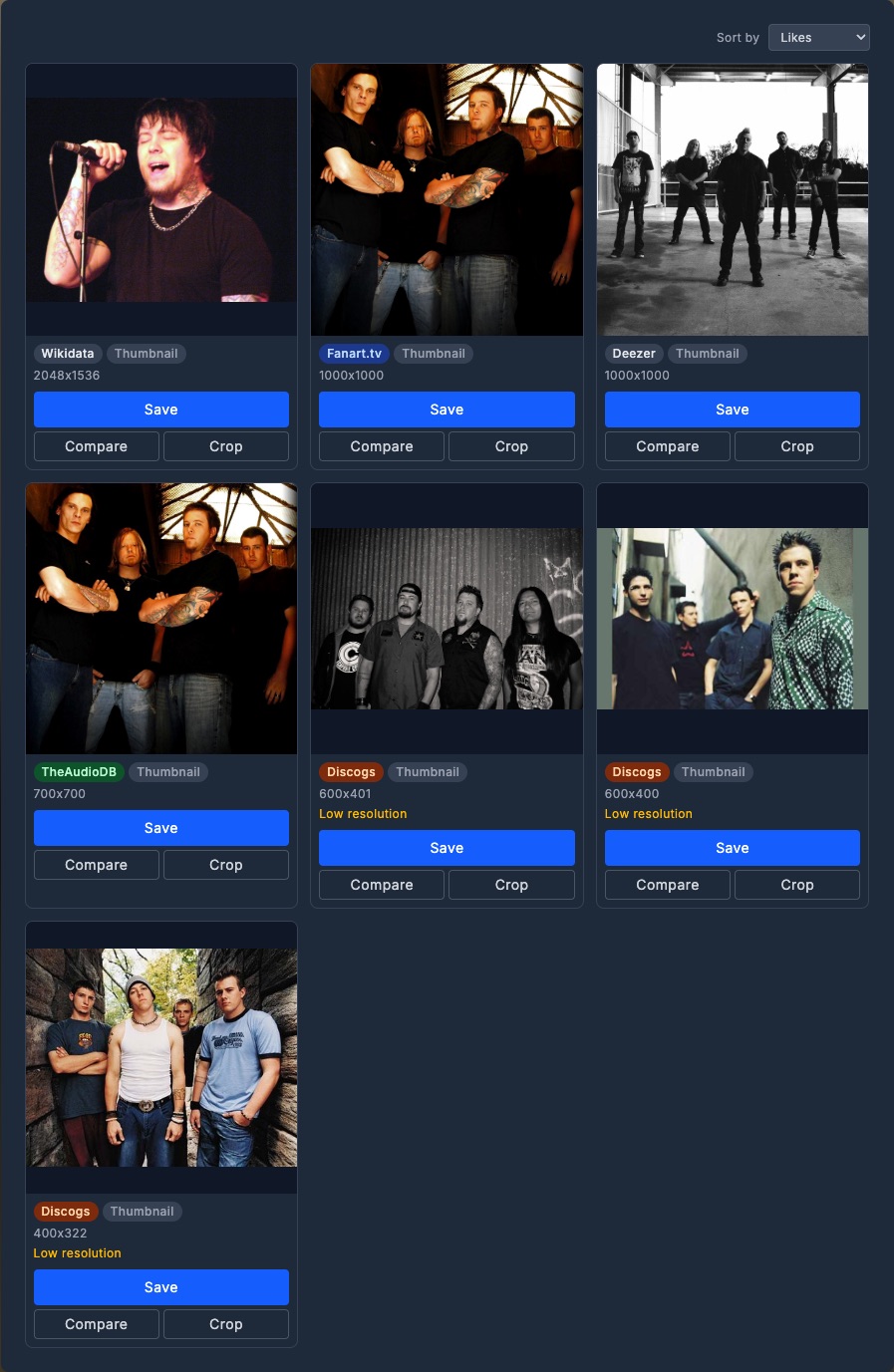
- Stillwater queries providers in priority order and shows the candidates in a grid. Each card carries the source provider's badge, the image kind, and the dimensions.
- Pick the one you want and click Save.
- (Optional) Crop in the in-browser cropper first -- handles for resizing, drag to reposition, the result preview updates live.
The saved file goes into the artist's directory under the canonical filename for the slot. Existing image is replaced (after a brief backup, in case you want to undo).
Fetch from web search
For cases where curated providers don't have what you need.
- Same as above, but choose Web Search from the Actions menu instead of Fetch.
- Stillwater queries the configured web search adapter (e.g., DuckDuckGo).
- The result list shows thumbnails with source URLs.
- Pick a candidate, preview, crop, save.
Web image search runs only on demand -- never as part of an automatic refresh -- so a forgotten search adapter doesn't drive automated fetches.
If the web search adapter itself fails (for example, the underlying site is refusing requests), Stillwater shows a message that the search is unavailable right now, naming the affected provider, instead of an empty grid. Treat the unavailable message as the definitive signal that the search itself could not be completed; an empty grid on its own just means there are no results to show right now (which also happens when no web search provider is enabled). When you see the unavailable message, try the Google Images search entry described below instead.
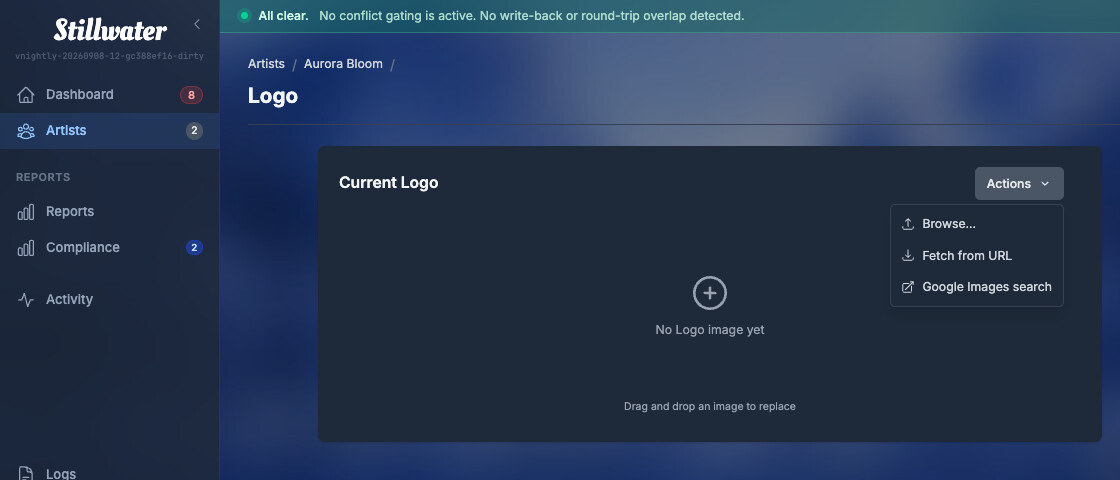
Search Google Images for a slot
Each slot's Actions menu also has a Google Images search entry. Unlike Fetch and Web Search, this does not return results inside Stillwater -- it opens Google Images in a new browser tab, pre-filtered for the slot you're on. Every slot searches on the artist's name; the two logo-shaped slots append " logo" to steer results toward marks and wordmarks rather than photos:
- Thumb: the artist name, large images, square aspect ratio.
- Fanart: the artist name, large images, wide aspect ratio.
- Logo: the artist name plus "logo", transparent background only (no size filter -- stacking one on top of the transparency filter over-constrained results).
- Banner: the artist name plus "logo", large images, extra-wide aspect ratio, transparent background.
Clicking the entry also opens Stillwater's own Fetch from URL dialog in this tab, already aimed at the same slot, so it's waiting for you when you switch back. Browse the Google Images tab, right-click (or long-press) the image you want, copy its image address, and paste it into the dialog that's already open. From there it's the same fetch-and-crop flow as any other source: Stillwater downloads the image, checks whether it needs cropping for the slot's shape, and saves it once you confirm.
This is a manual, on-demand path with no provider integration behind it -- your own browser performs the search, so it keeps working regardless of what any given provider's API does. It's especially useful for logos and banners, which few providers carry at all, and for rare or hard-to-find artwork that a curated provider search won't surface.
SVG results are not supported. Google's transparent-background filter (used by the logo and banner slots) can surface SVG images alongside PNG and JPG ones. Stillwater's image pipeline only decodes JPEG, PNG, and WebP, so pasting an SVG's address into Fetch from URL returns an error naming SVG specifically -- pick a PNG or JPG result instead.
Fetch many images at once (bulk)
When you want to populate images across many artists in one go:
- Open the artist list (or filter to a saved view).
- Click Bulk actions > Fetch images.
- Confirm the scope. Stillwater queues image fetches; results stream into each artist's record as they complete.
The bulk path uses your priority list per slot. It applies the rule thresholds: candidates that don't meet the minimum resolution rule are passed over (when configured to do so) in favor of higher-quality alternatives.
Upload from your computer
When you have the image already.
- Open the artist's Manage artwork modal and switch to the target slot's tab.
- Drag a file onto the drop target, or open the Actions menu and choose Browse.
- (Optional) Crop.
- Save.
Maximum upload size is 25 MB. Supported formats: JPG, PNG.
Crop a logo (trim padding)
Logos sometimes ship with excessive transparent padding around the artwork. The "Logo excessive padding" rule flags these; the trim action repairs them.
- Open the artist's Manage artwork modal and switch to the Logo tab.
- Click Trim (only appears when the rule has flagged the logo).
- Stillwater detects the artwork's bounding box and trims the surrounding padding, leaving a configurable margin (default 2 pixels).
- The result previews; click Save to keep, or Cancel to leave the original.
The trim margin is configurable under the rule's settings (Settings > Rules > Logo excessive padding).
Manage multi-fanart
Fanart is the only slot that supports more than one image. The Backdrops tab in Manage artwork lists every fanart, with the primary first.
To add another fanart:
- Click Add fanart at the end of the Backdrops gallery.
- Choose Fetch, Web Search, or Browse from the Actions menu.
- Select, crop, save. The new fanart joins the gallery.
To reorder:
- On the artist page, hover (or focus) any non-primary fanart in the gallery; a star button appears on the overlay. Click the star to promote that fanart to primary -- the rest keep their existing order behind it. (Clicking the thumbnail itself opens the lightbox; the star is the promotion control.)
- For finer control, open the Backdrops tab in Manage artwork (the same place you fetch new fanart from). The gallery there shows each fanart with up and down buttons; click them to reshuffle. The first fanart is primary, and the file numbering on disk follows the order, with the platform's convention applied (Emby/Jellyfin uses
fanart.jpg, fanart2.jpg, ...; Kodi usesfanart.jpg, fanart1.jpg, ...).
To replace or re-crop one fanart in place:
- Each fanart tile in the Backdrops tab has its own Crop and Fetch buttons alongside the checkbox and move controls. Use these to re-crop or replace that specific fanart without touching the others or leaving the tab.
To delete:
- Click the X on a fanart thumbnail. Files renumber after deletion to fill the gap.
To delete many at once:
- In the Backdrops tab, tick the checkbox on each fanart you want to remove, then click Delete selected (the button label updates to Delete N selected as soon as you've ticked at least one).
Comparison view
When you want to compare what's currently saved against the candidates from providers, the comparison view shows the current image and N candidates side by side, all at the same display size, with a "select this" button on each. Useful for picking between visually similar options.
What happens after a successful fetch
Once a fetch or upload writes a new image, Stillwater reruns the artist's image rules immediately. Violations like "missing thumb" or "missing fanart" disappear from the artist's row and the dashboard the moment the slot is populated, instead of waiting for the next scheduled rule scan.
An image you set by hand -- cropped, uploaded, or fetched into a specific slot -- is locked to that slot automatically. Automatic image rules (including the ones that replace a non-square thumbnail or remove duplicate fanart) will not overwrite or delete a locked or hand-set image, on the immediate rerun or on any later scheduled scan, so a deliberate choice is never undone by automation. This lock lives in Stillwater only; it is not written out to Emby or other connected platforms.
Skip rule violations during a fetch
If a fetch returns nothing satisfactory and the rule has "select best candidate" turned on, Stillwater picks the highest-resolution candidate and saves it -- even if it doesn't meet the threshold. The result still flags as a violation, but you've at least populated the slot.
To enforce the threshold strictly (no save unless a candidate meets the rule), turn that option off under the rule's config.
Why a fetch returned no images
A thin result set does not mean the search was thorough. Stillwater tells you which providers it actually asked, so you can tell "we looked everywhere and there is little out there" apart from "most providers were never consulted".
Above the results, you may see:
- A "not searched" notice naming specific providers. Those providers were never queried, so the results below are incomplete. Some image providers can only be looked up by their own ID (Discogs, Deezer, and Spotify each need theirs), and this artist has none stored. Run a metadata refresh to populate the IDs, then search again.
- An error notice naming a provider. That provider was asked and failed, and the message says why. The results are incomplete for a different reason: the provider is misconfigured, rate-limited, or down. Credentials are stripped from anything shown here.
- "No provider could be searched." Nothing was looked up at all. Every provider was missing the ID it needs. This is the case worth acting on: the empty grid says nothing about the artist's artwork, only about your stored IDs.
If every provider was searched and the grid is still thin:
- No provider supplies that slot. MusicBrainz has limited image coverage; Fanart.tv has the broadest. Check that Fanart.tv (and ideally TheAudioDB) are in your priority list for the slot.
- Transient outage. Try again in a few minutes; the orchestrator preserves existing images on transient errors.
Providers that can be looked up by MusicBrainz ID (TheAudioDB among them) are searched even when their own ID is unknown, so a missing provider ID does not by itself cost you those results.
API clients get the same facts: the image-search response carries a provider_statuses list reporting, per provider, whether it was queried, skipped (and why), or errored.
See also
- Images concept for the slots and platform terminology.
- Configure provider priorities for setting which providers Stillwater asks first.
- Edit an artist for fanart-reorder shortcuts and the in-place edit affordances.