Platform authentication
Most "Stillwater can't talk to my media server" issues are auth issues. This page walks through what each error mode looks like, where to verify, and how to fix.
Where to look first
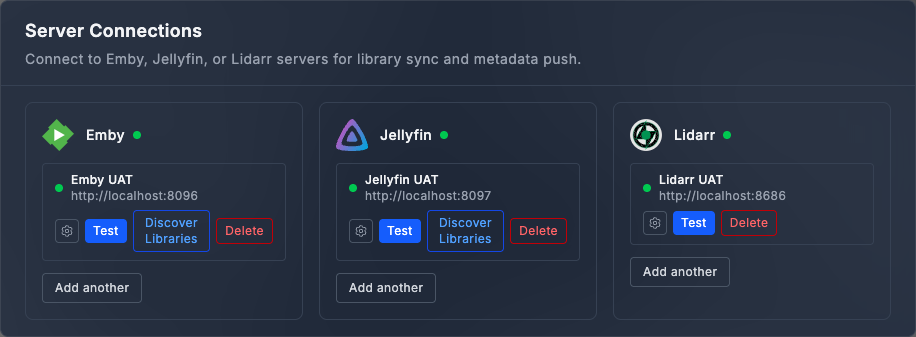
Settings > Connections shows a card per platform connection (Emby, Jellyfin, Lidarr). Each card has a live status label:
- Green "Connected" -- Stillwater connected on its last attempt; calls are working.
- Amber -- the connection is configured but not currently authenticating, or has a non-fatal warning attached.
- Red -- authentication is failing or the URL is unreachable.
Click into the card to see the underlying error message.
"Authentication failed" / 401 Unauthorized
Stillwater got to the platform but the API key was rejected.
Check:
- Is the API key still valid on the platform? Platform admins can revoke keys; if your Stillwater admin user was removed, the key probably went with them.
- Did you copy the right key? Some platforms expose multiple kinds of tokens (admin API key vs user access token). Stillwater needs an admin-equivalent key for full functionality.
- Is the key for the right server? When you have multiple instances of the same platform, key + URL must match.
Fix:
- Generate a new API key on the platform (the connect Emby and connect Jellyfin pages cover where).
- Settings > Connections > the failing card > Edit.
- Paste the new key, save.
- The status label should change to the green Connected state within a few seconds.
"Connection refused" / "DNS lookup failed" / 502 / 504
Stillwater couldn't even reach the platform.
Check:
- Is the URL correct? Common gotchas: missing port (
http://emby:8096nothttp://emby),https://when the platform serveshttp://, an extra path component. - Is the platform up? Open the URL in a browser from the same machine Stillwater runs on.
- Are Stillwater and the platform on the same network? If Stillwater is in Docker,
localhostfrom Stillwater's perspective is the container, not the host. Use the host's network name orhost.docker.internal(Docker Desktop) or the bridge IP.
Fix: correct the URL or fix the network path. Restart not required; the next request retries automatically.
"Forbidden" / 403
Stillwater authenticated but the platform refused the action.
Check:
- Does the API key have admin scope? Reads might work with a user-scope token but writes (image upload, library refresh) need admin.
- Is the user the API key belongs to disabled on the platform?
- Is the platform in a maintenance mode that blocks API writes?
Fix: generate a new key from an admin user and re-save. If the platform admin can't grant admin scope, accept the read-only mode -- some Stillwater features will be unavailable but most still work.
"Image fetcher conflict" warning
The Connections card shows an amber warning saying one or more enabled connections have server-side image fetching turned on. This means the platform is configured to download artwork on its own, which would duplicate or conflict with Stillwater's writes.
The risk level is one of:
- Warn -- the platform might fetch images that overwrite Stillwater's, but the impact is recoverable.
- Critical -- the platform is actively rewriting; expect Stillwater's image writes to be blocked by the conflict gate.
Fix one of two ways:
- Let Stillwater manage the artwork. On the platform, turn off the image fetcher for the affected libraries. Stillwater becomes the sole writer.
- Let the platform manage. In Stillwater, turn off the connection's "image write" feature so Stillwater leaves the artwork to the platform.
Pick whichever you prefer; the conflict goes away once one of the two stops writing.
"Library paths overlap" / 409 from refresh
Two connections (or a connection and a manual library) point at the same files on disk. Stillwater detects this on startup and again whenever connections change.
The conflict gate's reason in the UI:
library paths overlap between N connection pair(s); any image write reaches multiple servers on shared disk
Fix:
- If both servers should see the artwork: keep them pointed at the same path; let one (Stillwater) manage writes, set the other to read-only by disabling its server-side fetcher.
- If they should be independent: point each at a different directory. Stillwater's library configuration is independent of the platform's; they don't have to overlap.
"NFO writes paused" banner
The site-wide banner reading "NFO file writes paused" means the conflict gate has detected an active platform that's writing NFO files for the same artists. Until you resolve the underlying overlap, Stillwater will not write NFOs (rule fixers will defer; manual saves will refuse).
Fix: Same approach as the image-fetcher conflict above. Either Stillwater or the platform writes NFOs; not both.
The banner clears within seconds of resolving the conflict.
Lidarr shows an artist as missing after a rename or merge
Stillwater and Lidarr can mount the same library under different root paths (Stillwater's /music, Lidarr's /data/media, for example). When that's the case, a path mapping on the Lidarr connection translates one into the other; without it (or with a wrong one), a rename or merge tells Lidarr about a path it doesn't recognize.
Check:
- Does the connection have a path mapping configured at all? Settings > Connections > the Lidarr card > the Path mapping panel. If both sides genuinely see the same path, it should be empty; otherwise it needs at least one host-to-Lidarr prefix pair.
- Does the host prefix match the exact path Stillwater shows for the affected artist? A mapping saved against the wrong prefix silently fails to apply.
- Try Re-infer on the connection -- Stillwater re-derives the mapping from artists it can match to Lidarr by MusicBrainz ID. If it reports "no mappings inferred," too few matched artists agree on a single prefix, and you'll need to enter the mapping manually.
Fix: correct or add the path mapping, then re-trigger the rename or a Lidarr library refresh. See Connect Lidarr for how the mapping and inference work.
Jellyfin keeps a leftover artist after a merge or rename
After you merge duplicate artists or rename an artist's directory, Jellyfin can be left with a second, metadata-only artist entry that no longer points at any real folder. This is a Jellyfin limitation, not a Stillwater bug, and it can't be fixed from Stillwater's side.
Why this happens: Jellyfin does not let a client change an item's path. Its item-update endpoint accepts a path field in the request and returns success, but the server silently ignores that field -- the item's path never changes. (This is confirmed by directly reading the path back after the update; the API documentation says the field is settable, which is why the behavior is surprising.) Jellyfin only learns an item's path by scanning the filesystem itself. When Stillwater renames a directory or merges one artist into another, the old directory is gone by the time Jellyfin next scans, so Jellyfin drops the old item from the library folder and creates a brand new item at the new location. The old item can survive as a leftover entry with metadata but no library folder behind it.
Stillwater cannot remove that leftover entry automatically. The only Jellyfin endpoint that deletes an item also deletes the underlying media files from disk, and Stillwater will never call a destructive endpoint like that against your library on your behalf.
Fix: open Jellyfin directly and remove the leftover artist entry yourself (it will show no episodes, tracks, or files, since its folder is gone). Stillwater's own record and your files on disk are already correct after the merge or rename; only Jellyfin's leftover index entry needs manual cleanup.
Emby: Emby's artists are virtual entries derived from track tags rather than backed by a folder, and Emby reports no path at all for an artist item. Emby's path-update endpoint has the same "accepts the field, silently ignores it" shape as Jellyfin's, so the same limitation likely applies, but this has not been confirmed against a live Emby server. Treat Emby as unverified rather than assuming it behaves identically.
Lidarr, by contrast, gets this right. Lidarr genuinely stores the path Stillwater sends it, and Stillwater reads it back to confirm the update took. That's why this leftover-entry problem is specific to Jellyfin (and possibly Emby), not something you'll see with a Lidarr connection.
Re-sync Artists returns nothing new
You connected the platform, you clicked Re-sync Artists on the library row, but no new artists appeared.
Check:
- Library mapping. The connection has to map to a specific library on the platform. Settings > Connections > the card > verify the platform-side library is the one you expect.
- Artist visibility. Some platforms hide artists behind a "show all" toggle that only admins see. Confirm the platform itself shows the artists you expect.
- Rate limit. Large libraries get fetched in pages; the first refresh of a 50,000-artist library can take several minutes. Check the event banner for ongoing progress.
Fix: correct the mapping or wait for the refresh to finish. If the refresh actually errored, the event banner shows the cause.
Platform push failed toasts
When Stillwater pushes a lock change to a connected platform and the platform rejects it, a red toast appears in the bottom-right of every page. The toast names the connection, classifies the failure, and includes the artist when known. Example:
my-emby: auth_failed (artist: Beyoncé)
The error class tells you what to act on:
| Class | Cause | Next step |
|---|---|---|
auth_failed |
API key revoked, rotated, or never had write scope | Settings > Connections > the card > re-test; rotate the key if needed |
unreachable |
DNS, TCP, or TLS handshake to the platform failed | Confirm the platform is running on the URL Stillwater has stored |
timeout |
Platform accepted the connection but didn't respond within 30 s | Platform may be under load; retry the lock toggle later |
not_found |
Platform returned 404 for the artist item | Stillwater's mapping is stale; re-run the library populate for that side |
server_error |
Platform returned 5xx | Platform-side bug or overload; check the platform's own logs |
rejected |
Anything else (4xx other than 401/403/404, or a decode failure) | The detailed error is in Stillwater's logs under lock-push: update failed |
The lock state in Stillwater is already correct -- the toast is reporting that the platform write didn't go through. Once you fix the underlying cause, toggle the lock again to re-push.
"Restart the platform's library service after revoking" hint
When you change credentials on the platform side, the platform sometimes caches the old token. If Stillwater shows green but the actions still fail with 401, restart the platform's library service (Emby Server, Jellyfin) to flush. This is a platform behavior, not a Stillwater bug.
See also
- Connect Emby
- Connect Jellyfin
- Connect Lidarr
- Field locks -- the bigger picture on conflict-gated writes.